

CapCut - Video Editor

1B+
Installs
Bytedance Pte. Ltd.
Developer
-
Video Players & Editors
Category
-
Teen
Content Rating
-
capcut.support@bytedance.com
Developer Email
-
https://sf16-draftcdn-sg.ibytedtos.com/obj/ies-hotsoon-draft-sg/capcut/via_clause_privacy_policy_en.html
Privacy Policy
Screenshots
editor reviews
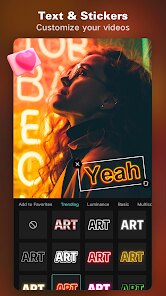
CapCut is a full-featured video editing app from Bytedance, the same team behind TikTok, and it's basically what most people think of first when they need to do quick edits on their phone. You can use it for trimming clips, adding music, throwing in transitions, and slapping on text or stickers, all without paying a dime. Most people download it because they've seen those slick TikTok edits and want to replicate them, or because they just need something that works better than their phone's basic gallery editor. Once you open it up, the first thing that hits you is this clean, dark-mode interface that doesn't feel cluttered, and there's no hard sell to upgrade or sign in right away, which is pretty refreshing. On Google Play and the App Store, it's sitting at over a billion installs, so it's definitely the go-to for a lot of folks.
When you actually start using CapCut, the onboarding is basically a non-event. You just tap to create a new project, pick some videos or photos from your camera roll, and you're dropped right into the timeline. The layout is pretty intuitive: at the bottom, you've got your timeline where you can split clips, adjust speed, or delete stuff; up top, there's a preview window; and along the bottom, there's a menu for adding audio, effects, or text. The first time I edited something, I tried adding background music, and it was dead simple. I just hit "Audio," picked a track from their royalty-free library, and it automatically lined up. A small tip: if you want to match the beat, just use the "Auto Beat" feature, and it'll sync your cuts for you. There were a few moments where I got confused, like figuring out how to layer keyframes for custom animations, but a quick look at the small "help" icons in the menu sorted it out. For day-to-day use, you just import, cut, add some text, maybe slow down a part, and export. It's smooth for short clips but can feel a bit sluggish if you throw in a lot of 4K footage or heavy effects.
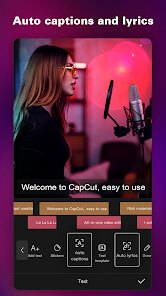
After spending a good chunk of time with CapCut, I think it's a solid pick for anyone who makes short-form content for TikTok, Instagram Reels, or YouTube Shorts. It's not trying to be a full-blown Premiere Pro; it's built for speed and social media trends. The reason I've kept it is that the text-to-speech voices are actually good, and the auto-captions work without a hitch, which saves me a lot of time. But if you're someone who needs precise color grading or multi-track audio mixing, you'll find it limiting. Compared to InShot, CapCut feels more modern and has more trendy templates, but InShot is better if you just want a straightforward editor without the TikTok influence. I could see someone uninstalling it if they found the constant social-media-style effects too cheesy or if they needed more advanced timeline control. It's a free, capable editor for today's fast content, but it's not a one-size-fits-all solution.
features
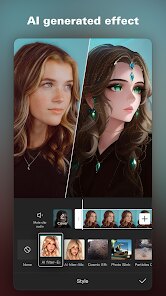
- 😎 CapCut's standout feature is the “Auto Cut” tool, which uses AI to automatically pick the best moments from a long clip and stitch them together into a short video. In comparison, InShot requires you to manually cut every segment and then arrange them on the timeline, which takes much longer. I filmed a 10-minute vlog, and CapCut condensed it into a 30-second highlight reel with decent transitions, while InShot would have me scrubbing through the whole thing.
- 🎥 The AI text-to-speech voices in CapCut are more natural and varied than what you get in KineMaster. KineMaster has a few robotic-sounding voices, but CapCut offers regional accents, emotion-based tones, and even celebrity-style impressions. I used the “Cartoon” voice for a kid's birthday video, and it sounded genuinely expressive, not like a GPS.
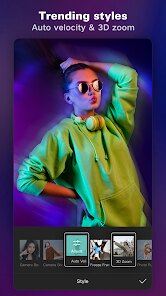
- 💡 CapCut's “Keyframe Animation” is more accessible for beginners compared to Adobe Premiere Rush. In Rush, you have to manually set keyframe points on a graph, which can be confusing. In CapCut, you just tap to add a keyframe, then drag to reposition the element, and the app fills in the motion automatically. It's simple enough that I animated a bouncing logo in 30 seconds without watching a tutorial.
- 🔄 The “Auto Beat” feature for syncing clips to music is more refined than Funimate's beat detection. Funimate sometimes misses the beat on slower songs, but CapCut's algorithm detects the tempo better and creates smoother cuts. I tested it with a lo-fi track, and the transitions landed exactly on the downbeats.
pros
- 🤩 CapCut is free with no watermarks or ads, which is a huge plus over apps like InShot, where the free version slaps a watermark on exports unless you pay. I edited a whole video and exported it cleanly, no branding, no upselling pop-ups.
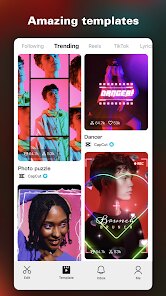
- 🤩 The template library is massive and directly integrates with TikTok trends, so you can just drop your footage into a pre-made template and get a polished video in seconds. Apps like VN Video Editor have templates, but they're not as current.
- 🤩 The text-to-speech feature handles multiple languages and accents accurately, whereas KineMaster offers only standard, limited voices. I used it for a bilingual caption, and it switched smoothly between English and Spanish.
cons
- 😕 CapCut's timeline can get clunky with multiple video or audio layers. When I added three clips and two audio tracks, the response started lagging, and scrubbing became choppy. InShot handles this better with a smoother preview even on mid-range phones.
- 😕 The export resolution options are limited to 720p and 1080p for free users, while KineMaster supports 2K and 4K exports on its free tier. I wanted to export a 4K travel video, but CapCut forced me down to 1080p with visible compression.
- 😕 There is no built-in audio editing or volume keyframing, so you can't adjust volume levels across a clip without splitting it. Apps like PowerDirector let you set volume keyframes directly on the timeline, making it easier to fade in or out.
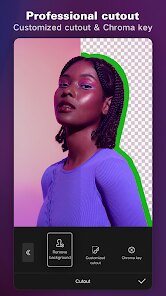
- 😕 The “Remove Background” tool isn't as precise as in YouCam Perfect, especially with complex hair or fast-moving objects. I tried to cut out a person dancing, and the edges were blurry with visible green spill.
Recommended Apps
![]()
Daily Horoscope
KADO Apps4.4
![]()
FOX Sports: Watch Live Games
Fox Digital Services, LLC3.7
![]()
Fake Call from Santa Claus
ThunderClap4.2![]()
Google Maps
Google LLC4.2![]()
PhotoLayers-Superimpose,Eraser
handyCloset Inc.4.6![]()
Healthy Benefits+
Solutran, Inc.4.5![]()
SuperMe - Avatar Maker Creator
THE.DEMON3.7![]()
Air Horn
Tenoku4.8![]()
Football Wallpaper HD 4K
Orange Infotech Studio4.6![]()
Artplay - AI Photo & Video
Hideaway Technology Limited4.5![]()
Horoscopes – Daily Zodiac Horo
Mail.Ru Group4.1![]()
Passport Parking
Passport Labs, Inc.2.5![]()
ParkMobile: Park. Pay. Go.
Parkmobile, LLC4.3![]()
FestAI: Ghost Detector App
Now Tech3.2![]()
Photo Tool
COLIFER LAB4